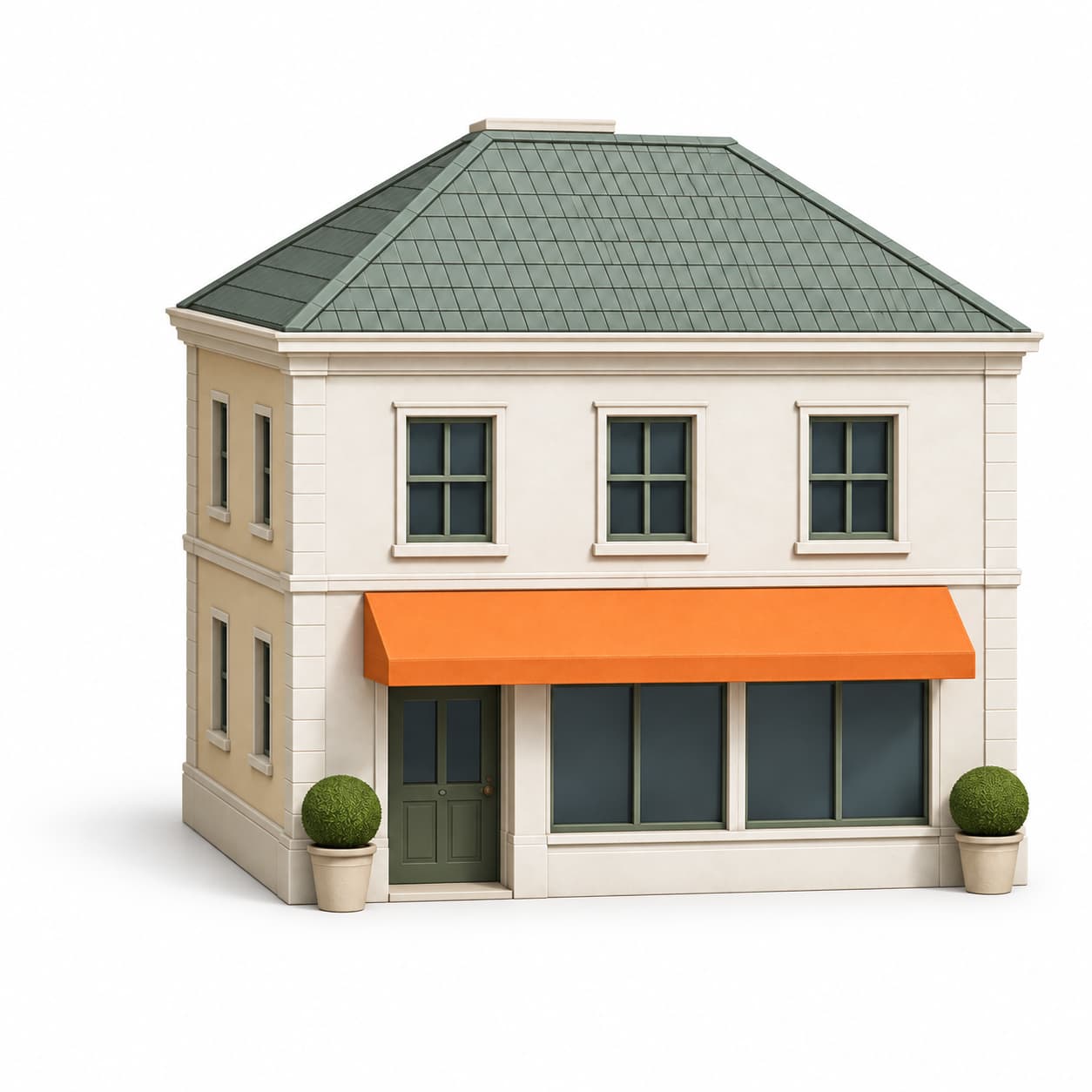
Inspection photo 1Porch roof
For real estate investors
Document investment property conditions and plan repairs with CM Vision. Keep walkthrough photos and notes together, explore potential repair needs with AI, and compare contractor proposals.

01 · Walk the property
An investor is walking Alder House before planning exterior repairs. Capture the open porch-trim joint and field notes on iPhone, then revisit the saved inspection at your desk before calling a contractor.
On site · iOS app
Exterior · Front porch
Open joint above the porch. Check the connection before resealing.
There’s a narrow gap where the porch roof trim meets the siding. Check behind it for moisture before resealing the joint.
Show MoreSaved on the web
 CM Vision
Annual Property Condition
Exterior · Front porch
Open joint above the porch. Check the connection before resealing.
What should we check before resealing this joint?
Check the trim connection and look for moisture behind it. Confirm the joint is dry and secure before resealing.
What if the wood behind the trim is damp?
Document the moisture and find its source before closing the joint. Check whether the trim needs repair once it dries.
What should I save with this inspection item?
Add a close-up photo and note what you found behind the trim. That gives the repair team a clear starting point.
AI tools are included with Pro. Illustrative workflow using demo data and representative app views.
02 · Explore repair needs
AI connects Alder House’s two roof photos and field notes into a potential moisture concern. Review the finding, ask what to check behind the trim, and generate suggested Punch List items to discuss with a contractor.
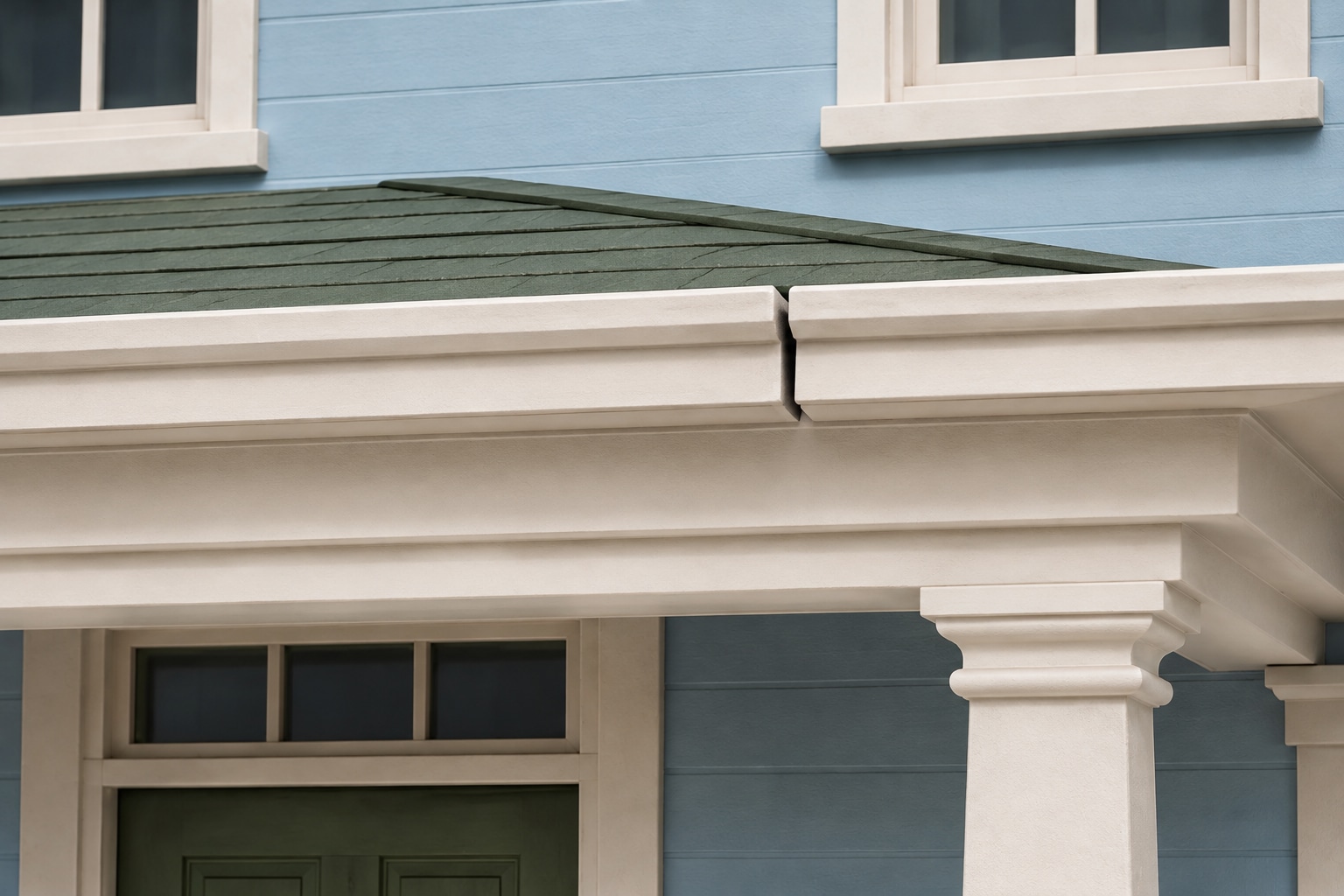
The open joint may let water behind the trim, where trapped moisture could damage the material underneath. Check that the connection is secure and dry before resealing it.
03 · Compare the proposals
Upload contractor proposal PDFs and use AI to compare what they include. At Alder House, one proposal leaves surface prep and painting unspecified—a useful question to ask before choosing.
Alder House · Porch repairs
Contractor proposals
Prepare surfaces + reseal · Paint repaired area
Surface prep and painting not specified
Proposal B is $400 lower, but it doesn't list two steps included in Proposal A.
Does your price include surface preparation, resealing, and painting?
A few useful details
This workflow focuses on documenting condition, exploring potential repairs, and reviewing contractor proposals. It does not calculate property value, financing, or investment returns.
AI may offer illustrative planning guidance. Confirm the actual condition, scope, and pricing with qualified professionals and contractor proposals before making a decision.
AI analyzes uploaded bid PDFs to highlight differences, omissions, and questions to clarify. Review the original proposals and confirm the details with each contractor.
Free includes your own properties, inspections, reports, exports, and 1 GB of storage. Pro adds AI tools, property collaboration, 25 GB of storage, and 1,000 AI credits per user each month. Compare the plans.
More ways to work
Start with photos, notes, and a property. Add AI when you’re ready to explore what comes next.
See what’s included in Pro